
The option to complete the Final Review appears on the Review page in the last 28 days of the Performance Cycle by default. Depending on your settings, this could be longer or shorter.
This means that 28 days prior to this date, the “Complete Final Review” button will become visible to both the Manager and Employee.
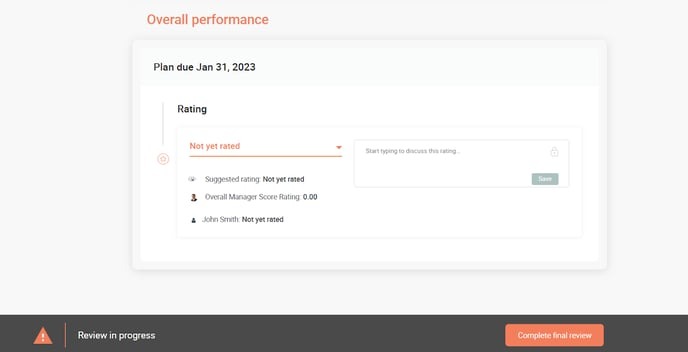
For example, if the due date of the plan is December 31st, then the Complete Final Review button will be available starting December 3rd as this is 28 days before the due date. You will see the Complete Final Review button at the bottom of the page as shown in the screenshot bellow:
At this time, Managers and Employees will both be able to perform a final review of the employee's performance. Employees can add comments, self-rate their performance and complete their review. When a Manager is completing their final review, they will be able to see the ratings the Employee gave themselves during their self-review.
Once the Manager has added their feedback, selected their ratings and clicked on the Complete Final Review button, the plan will move to an archived status.
If there are any changes required by the Manager or Employee, it is possible to re-open the plan if any adjustment is needed. This can be actioned by the Manager or an Admin.